
Connect Claude to Webeyez MCP
Implementing Webeyez MCP Connector in Claude
This guide covers how to connect Webeyez to Claude as a custom connector (remote MCP server), for both an individual (Pro/Max/Free) license and a Team/Enterprise license.
Background
Custom connectors let Claude talk to a remote MCP (Model Context Protocol) server over the internet. Once connected, Claude can call Webeyez's tools directly inside a conversation, for example, querying journey/session data, checking status of background analytics queries, or pulling session recording links, without you copying data back and forth manually.
A few things to know before you start:
- Connectors are available on Free, Pro, Max, Team, and Enterprise plans. Free users are limited to one custom connector total.
- Webeyez's tools include actions like starting background queries, checking their status, retrieving session recordings, and submitting feedback, mostly read/reporting actions, but review the tool list yourself before granting access.
Prerequisites
- An active Webeyez account with login access. After the connector is added in Claude, you'll be prompted to authenticate to Webeyez via OAuth, so make sure you can sign in to Webeyez yourself before starting, since Claude will redirect you to Webeyez's own login screen to complete the connection.
- For Team/Enterprise: your Claude organization must have an Owner or Primary Owner to complete the initial setup, regular members cannot add org-wide custom connectors themselves.
Step 1 - Open the connectors directory
You can get there from two places.
From a chat:
- Click the Search and tools button at the lower left of the chat box.
- Select Add connectors.
From settings:
- Go to Settings → Connectors.
- Click Browse connectors.
Step 2 - Find Webeyez
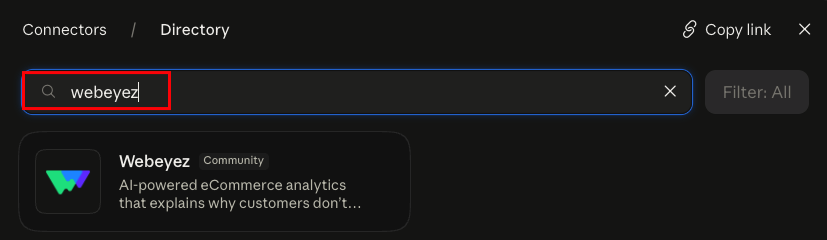
Search for Webeyez, or scroll the list by category (analytics / business tools).
Click the listing to open it. You'll see a description of what the connector does and which capabilities it has — worth a quick read so you know what you're granting.
Step 3 - Connect
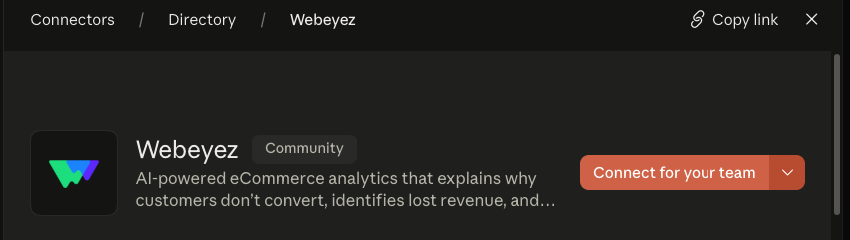
- Click Connect.
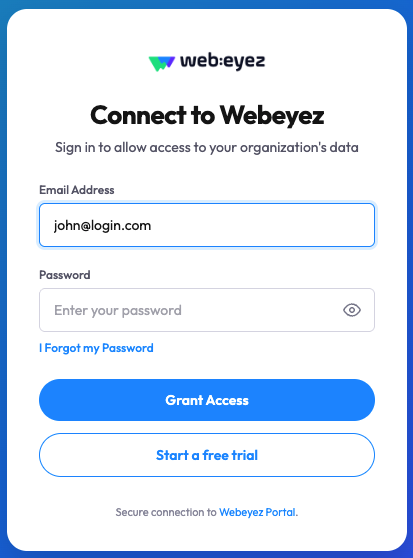
- You'll be redirected to Webeyez to sign in. If you are not loggedin to Calude on your browser you'll need to first login to Claude.
- Review the permissions on the authorization screen, then approve.
- You'll be returned to Claude with the connector showing as connected.
What you're granting: Claude will be able to read data from Webeyez using your account permissions. It can't see anything you can't see. Only approve if you recognize the permissions being requested.
Step 4 - Enable the tools in your chat
Connecting the account isn't quite the last step — tools also need to be switched on for the conversation.
- Open a new chat.
- Click Search and tools (lower left).
- Find Webeyez and make sure it's enabled.
If you have 10 or more connectors active, consider switching Tool access to On demand instead of Auto. It keeps your conversation from being crowded out by tool definitions.
Step 5 - Test it
Try something concrete so you can tell real data from a generic answer:
- "How many session did www.example.com have in the past week?"
- "What are leading javascripot error in the past week?"
Claude should call a Webeyez tool and return your actual numbers. If it answers generically without calling a tool, revisit Step 4.
Fallback
If the Webeyez listing doesn't appear in your directory , for example, if you're on a plan or region where it hasn't rolled out yet, you can add it manually. It works identically once connected.
Setup for a Personal License (Free, Pro, or Max)
- Open Claude (web, desktop, or mobile) and go to Settings > Connectors.
- Click the "+" button, then "Add custom connector" at the bottom of the Connectors list.
- Enter:
Name: Webeyez
URL: https://api.app.webeyez.com/mcp
Advanced settings -> Oauth aclint ID: webeyez-mcp
- Click Add, then Connect. You'll be redirected to log in to Webeyez and approve the connection. This is a one-time OAuth consent step, Claude never sees your Webeyez password.
- Once connected, enable it per conversation via the "+" button in the composer > Connectors, and toggle Webeyez on.
- Test it by asking Claude something like "Use Webeyez - How many session did we have in the past week"
Note: Free-plan users can only have one custom connector active at a time, if you already use another custom connector, you'll need to remove it first (there's no in-place edit; removing and re-adding is how updates are made too).
Setup for a Team or Enterprise License
Team/Enterprise setup happens in two stages: an Owner/Primary Owner registers the connector for the organization, then individual members authenticate.
Stage A - Organization setup (Owner/Primary Owner only)
- Go to Organization Settings > Connectors.
- Click "Browse connectors" at the bottom, or "+" > "Add custom connector" if Webeyez won't appear in the directory browse list.
- Enter the same details as above:
Name: Webeyez
URL: https://api.app.webeyez.com/mcp
Advanced settings -> Oauth aclint ID: webeyez-mcp - Save/Add the connector. It now appears in your org's connector list with a "Custom" label, available for members to connect to.
- Optional but recommended: under "Organization Settings > Connectors", review whether to allow this connector's interactive/UI tool calls org-wide, and decide if you want to restrict it to specific teams.
Stage B - Member setup (each individual user)
- Each team member goes to Settings > Connectors.
- They'll see "Webeyez" listed with a "Custom" label (added by the Owner in Stage A).
- Click "Connect", and complete authentication with their own Webeyez credentials.
- Enable Webeyez per conversation the same way as the personal flow: "+" > Connectors > toggle Webeyez on.
Enterprise-managed auth: On Enterprise plans, an Owner can optionally authorize Webeyez once for the whole org (Organization Settings > Connectors > Enterprise-managed auth), so members inherit access automatically on first login instead of individually authenticating.
Using Webeyez Once Connected
With the connector enabled in a conversation, you can ask Claude things like:
- "Ask Webeyez what is my conversion rate in the past week"
- "Ask Webeyez what are the latest javascript errors that occured"
- "Ask Webeyez what are the most common login failures"
Claude will call the relevant Webeyez tool automatically when your request maps to it, you don't need to name the tool explicitly, just describe what you want.