
Webeyez MCP Integration
Every client connects to the same hosted Webeyez endpoint, https://api.app.webeyez.com/mcp, using a Personal Access Token (PAT). Pick one of two methods per client.
Method | How it works | Needs | Best for |
|---|---|---|---|
Local proxy (stdio) | Client runs npx -y @webeyez/mcp-server, which tunnels over TLS to the hosted endpoint | Node.js, WEBEYEZ_API_KEY env var | Desktop IDEs and CLIs |
Remote (HTTP/SSE) | Client calls the endpoint directly | Token in the x-api-key header or a token URL query parameter | Web clients, no local install |
Before you start
- Sign in to the Webeyez app and open User Settings - https://app.webeyez.com/settings/usersettings
- Copy your Personal Access Token.
- For the local proxy, check Node.js is installed: node -v.
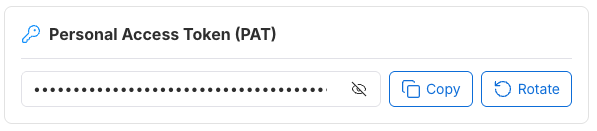
Never commit a config file that holds your token. Use a global config file or an environment variable instead.
Optional: set WEBEYEZ_MCP_URL to override the default endpoint.
1. Claude Code and Claude Desktop
Claude Code (CLI)
One command adds the server. --scope user makes it available in every project.
Local proxy:
claude mcp add webeyez --scope user \
-e WEBEYEZ_API_KEY=your_PAT_here \
-- npx -y @webeyez/mcp-server
Remote:
claude mcp add --transport http webeyez --scope user \
https://api.app.webeyez.com/mcp \
--header "x-api-key: your_PAT_here"</p>
Check it with claude mcp list, or run /mcp inside a session.
2. Cursor
Cursor reads MCP servers from ~/.cursor/mcp.json (all projects) or .cursor/mcp.json (one project).
- Open Cursor Settings → MCP & Integrations, then click New MCP Server. This opens mcp.json.
- Paste one of the configs below and save.
- Check that webeyez shows a green status dot.
- Use the tools in Agent mode. Ask mode does not call tools.
Local proxy:
{
  "mcpServers": {
    "webeyez": {
      "command": "npx",
      "args": ["-y", "@webeyez/mcp-server"],
      "env": { "WEBEYEZ_API_KEY": "your_PAT_here" }
    }
  }
}
Remote:
{
  "mcpServers": {
    "webeyez": {
      "url": "https://api.app.webeyez.com/mcp",
      "headers": { "x-api-key": "your_PAT_here" }
    }
  }
}
If the tools don’t appear, click the refresh icon next to the server, or check View → Output → MCP Logs.
3. VS Code (GitHub Copilot Agent mode)
VS Code uses a servers key, not mcpServers. Its inputs block prompts for the token once and stores it securely, so the token never sits in the file.
- Open the Command Palette and run MCP: Open User Configuration (all workspaces). For one workspace, create .vscode/mcp.json instead.
- Paste one of the configs below and save.
- Click Start above the server entry, and enter your PAT when prompted.
- Open Copilot Chat, switch to Agent mode, and enable the Webeyez tools in the tools picker.
Local proxy:
{
  "inputs": [
    { "type": "promptString", "id": "webeyez-key", "description": "Webeyez PAT", "password": true }
  ],
  "servers": {
    "webeyez": {
      "type": "stdio",
      "command": "npx",
      "args": ["-y", "@webeyez/mcp-server"],
      "env": { "WEBEYEZ_API_KEY": "${input:webeyez-key}" }
    }
  }
}
Remote:
{
  "inputs": [
    { "type": "promptString", "id": "webeyez-key", "description": "Webeyez PAT", "password": true }
  ],
  "servers": {
    "webeyez": {
      "type": "http",
      "url": "https://api.app.webeyez.com/mcp",
      "headers": { "x-api-key": "${input:webeyez-key}" }
    }
  }
}
In an organization, an admin may need to allow MCP servers in the Copilot policy first.
4. ChatGPT (Developer mode)
ChatGPT connects only to remote MCP servers, and its connector form offers OAuth or No Authentication. It cannot send a custom API-key header, so pass the PAT as the token URL query parameter.
Requires a paid plan (Plus, Pro, Business, Enterprise or Edu). On Business and Enterprise workspaces, an admin may need to allow custom connectors first.
- In ChatGPT on the web, open Settings → Apps & Connectors → Advanced settings, and turn on Developer mode. In some versions the toggle sits under Settings → Security.
- Back in Apps & Connectors, click Create.
- Fill in the form:
- Name: Webeyez
- MCP server URL: https://api.app.webeyez.com/mcp?token=your_PAT_here
- Authentication: No Authentication
- Tick I trust this application, then click Create. ChatGPT scans the server and lists the Webeyez tools.
- In a new chat, open the + menu, choose Developer mode, and select Webeyez.
The token in the URL is visible to anyone who can see the connector settings. Use a dedicated PAT for ChatGPT so you can revoke it on its own. Adding OAuth to the Webeyez endpoint would remove this workaround.
5. Windsurf
Windsurf reads MCP servers from ~/.codeium/windsurf/mcp_config.json. For remote servers it uses serverUrl, not url.
- Open Windsurf Settings → Cascade → MCP Servers, then click View raw config. You can also open the MCP icon in the Cascade panel.
- Paste one of the configs below and save.
- Click Refresh in the MCP panel. Webeyez should show as connected with its tools listed.
- Ask Cascade a Webeyez question.
Local proxy:
{
  "mcpServers": {
    "webeyez": {
      "command": "npx",
      "args": ["-y", "@webeyez/mcp-server"],
      "env": { "WEBEYEZ_API_KEY": "your_PAT_here" }
    }
  }
}
Remote:
{
  "mcpServers": {
    "webeyez": {
      "serverUrl": "https://api.app.webeyez.com/mcp",
      "headers": { "x-api-key": "your_PAT_here" }
    }
  }
}
Tools, prompts and troubleshooting
Available tools
Tool | What it does |
|---|---|
get_organizations_list | Lists the organizations you can access, with their IDs |
get_organization_domains | Lists the domains configured for one organization |
start_webeyez_query | Starts a natural-language analytics query (errors, funnels, friction, performance) |
check_webeyez_status | Polls a query by job ID and returns the answer |
get_session_recording_links | Returns replay URLs for up to 10 session IDs |
logout_webeyez | Ends the session and invalidates its token |
Example prompts
- “List my Webeyez organizations.” (a good first test)
- “What were the top JavaScript errors on checkout pages last week?”
- “Where do mobile users drop off in the conversion funnel?”
- “Give me replay links for the sessions with the most rage clicks yesterday.”
Troubleshooting
Symptom | Fix |
|---|---|
Server shows red or not connected | Check the PAT is current and pasted without spaces; restart the client |
npx: command not found | Install Node.js, then restart the client so it picks up the new PATH |
Tools listed but never called | Switch to Agent mode (Cursor, VS Code) or enable the connector in the chat (ChatGPT) |
401 or unauthorized errors | Generate a new PAT in User Settings and update the config |
Query seems stuck | Queries run in the background; ask the agent to check the status again |
ChatGPT has no Create button | Turn on Developer mode, or ask your workspace admin to allow custom connectors |